
how to connect portable wifi while traveling usually comes down to three things: your device is powered and provisioned, your phone or laptop joins the right network, and the hotspot has a usable signal where you are.
If you’ve ever landed, turned on your pocket WiFi, and watched it “connect” while nothing actually loads, you’re not alone. Travel networks fail in predictable ways: weak coverage in certain neighborhoods, roaming settings that don’t match your plan, or simple setup mistakes like joining the wrong SSID.
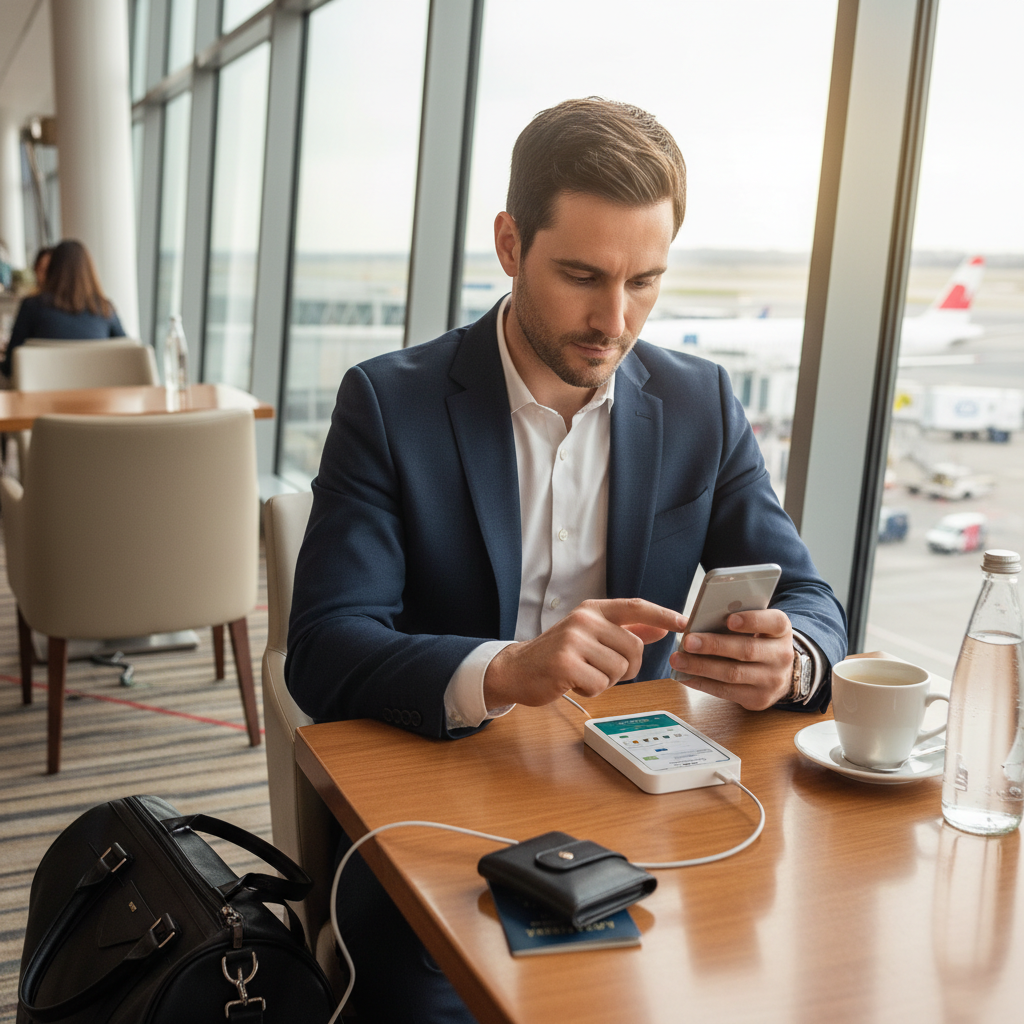
This guide keeps it practical: quick setup, a checklist to diagnose what’s wrong, a few “don’t waste your time” fixes, and security habits that matter more when you’re on the road.
Know what “portable WiFi” you actually have
Before you troubleshoot, identify the type of device. People call several things “portable WiFi,” but they behave differently.
- Dedicated mobile hotspot (MiFi/pocket WiFi): A small router with a SIM/eSIM that broadcasts Wi‑Fi.
- Phone hotspot (tethering): Your phone becomes the hotspot; battery and plan limits matter a lot.
- Travel router: Re-broadcasts hotel Wi‑Fi; it does not create internet by itself.
If you’re trying how to connect portable wifi while traveling with a travel router, the “internet source” still needs to be hotel Wi‑Fi or wired ethernet. With a pocket WiFi hotspot, the source is cellular, so coverage and your plan are the usual blockers.
Quick setup: connect in 5 minutes (pocket WiFi hotspot)
This is the “get online fast” flow that works in many situations, even when you’re tired and the instructions are tiny.
1) Power, SIM/eSIM, and a clean start
- Charge the hotspot to at least ~30% so it doesn’t enter low-power behavior.
- Confirm the SIM is seated, or confirm the eSIM profile is active in the device/app (varies by brand).
- Restart the hotspot once after arrival, especially if you crossed borders.
2) Join the correct Wi‑Fi network
- On your phone/laptop, open Wi‑Fi and select the hotspot’s SSID (network name on the sticker/screen).
- Enter the Wi‑Fi password exactly, then wait 15–30 seconds for a stable connection.
- If you see “Connected, no internet,” continue to the checklist below rather than retyping the password ten times.
3) Confirm the hotspot has cellular service
- Look for signal bars and a network type indicator (LTE/4G/5G) on the hotspot screen.
- If there’s an admin app or web panel, check that data/roaming is enabled if your plan supports it.
According to the Federal Communications Commission (FCC)... roaming and network availability can vary by carrier and location, which is why a hotspot may show signal but still behave inconsistently in certain areas.
Fast self-check: why you’re connected but still offline
When how to connect portable wifi while traveling goes sideways, it’s usually one of these categories. Run through this list once, calmly, and you’ll often fix it faster than random toggling.
- No signal or “No Service”: You’re in a dead spot, indoors behind thick walls, or your plan has no coverage there.
- Signal exists but no data: APN settings wrong, roaming off, data limit reached, or the SIM isn’t active.
- One device works, another doesn’t: Device-level DNS/VPN/private relay issues, or you joined the wrong SSID.
- Everything is slow: Congestion, weak signal, or you’re on 2.4 GHz in a noisy environment.
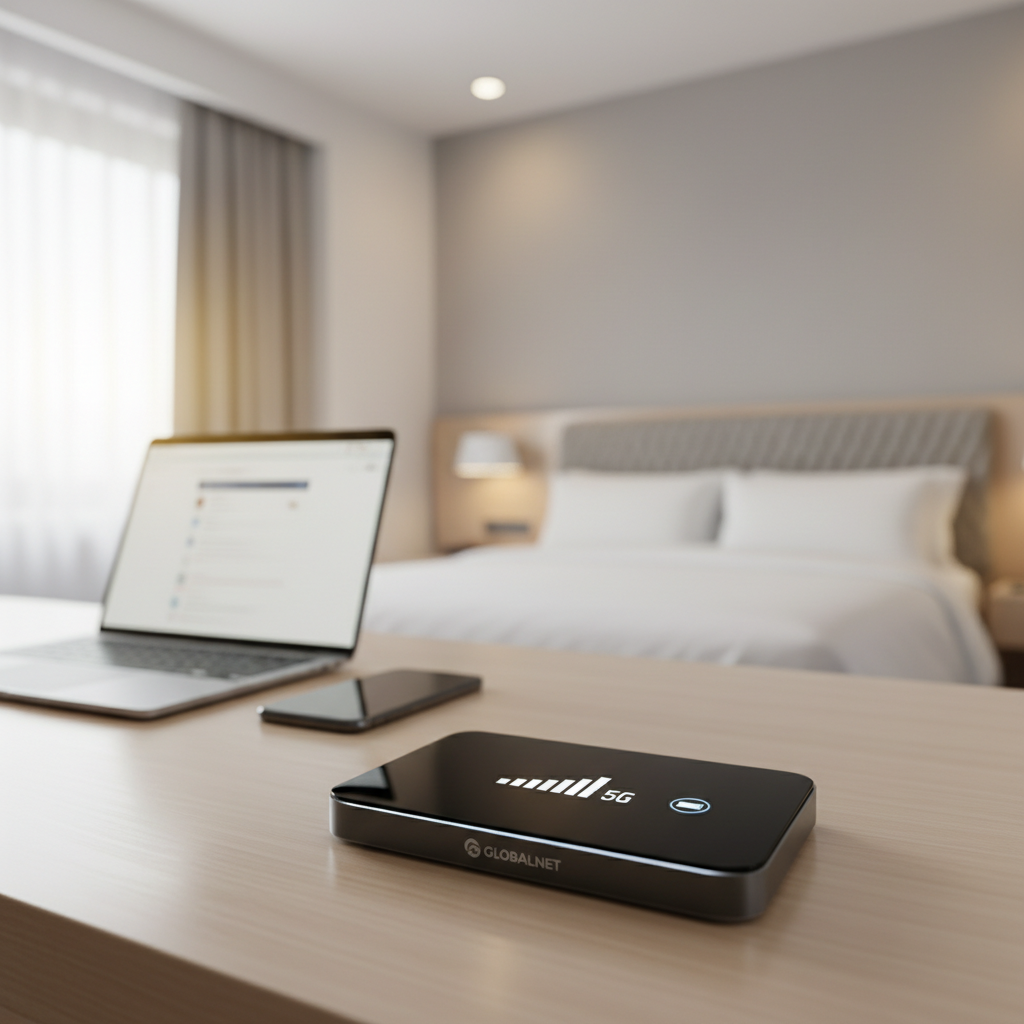
If you only do one diagnostic move, do this: connect one device, turn off VPN/iCloud Private Relay (or similar), open a simple site (not an app), then test again. It separates “internet path” problems from app/account weirdness.
Step-by-step troubleshooting that actually saves time
Below are fixes in the order that tends to be most efficient. Not every step applies, but this sequence avoids loops.
Confirm you’re on the right network
- Forget the network on your device, then re-join using the printed password.
- Check for lookalike SSIDs if you renamed your hotspot months ago.
Move the hotspot, not your expectations
- Stand near a window or higher floor for 60 seconds, then retest.
- Avoid placing the hotspot behind TVs, inside bags, or near metal surfaces.
Check roaming, APN, and plan status (common international issue)
- In the hotspot admin page/app, verify the correct APN (carrier access point setting). If you don’t know it, check your provider’s official support page.
- If you traveled internationally, confirm that roaming is allowed by your plan and enabled on the device.
- If your plan is prepaid or day-pass based, make sure it’s actually activated for the current region.
Fix “connected but no internet” on phones and laptops
- Temporarily disable VPN, firewall apps, or “Private DNS” features, then test.
- Toggle airplane mode on/off on the device (not just Wi‑Fi), then reconnect.
- If you can access the hotspot admin panel, set DNS to a well-known public provider only if your provider recommends it; otherwise, leave defaults.
Choose the best connection method for your trip (table)
When people ask how to connect portable wifi while traveling, they often mean “which setup causes the least pain.” Here’s a practical comparison.
| Option | Best for | Tradeoffs | Setup tips |
|---|---|---|---|
| Dedicated pocket WiFi | Families, work travel, multiple devices | Extra device to charge, plan management | Rename SSID, set WPA2/WPA3, keep a power bank |
| Phone hotspot | Short trips, solo travelers | Battery drain, heat, carrier throttling | Use USB power, disable background app updates |
| eSIM on phone + hotspot sharing | Flexible international coverage | Not all phones support sharing on all plans | Confirm tethering allowed before you fly |
| Travel router + hotel Wi‑Fi | Hotel-heavy trips, smart devices | Depends on hotel quality, captive portals | Use router “repeater” mode, keep admin login handy |
Security and privacy basics (worth doing, even on vacation)
Portable hotspots are usually safer than random public Wi‑Fi, but they still deserve a minute of setup. The goal is reducing avoidable risk, not chasing perfection.
- Change the default admin password for the hotspot settings page, not just the Wi‑Fi password.
- Use WPA2 or WPA3 if available, avoid “open” modes.
- Turn off WPS if the device offers it, it’s convenient but can be a weak spot.
- Keep firmware updated when you’re on a stable connection at home, not mid-trip.
According to the National Institute of Standards and Technology (NIST)... using strong authentication and keeping systems updated are core steps to reduce common security risks, which maps well to hotspots too.
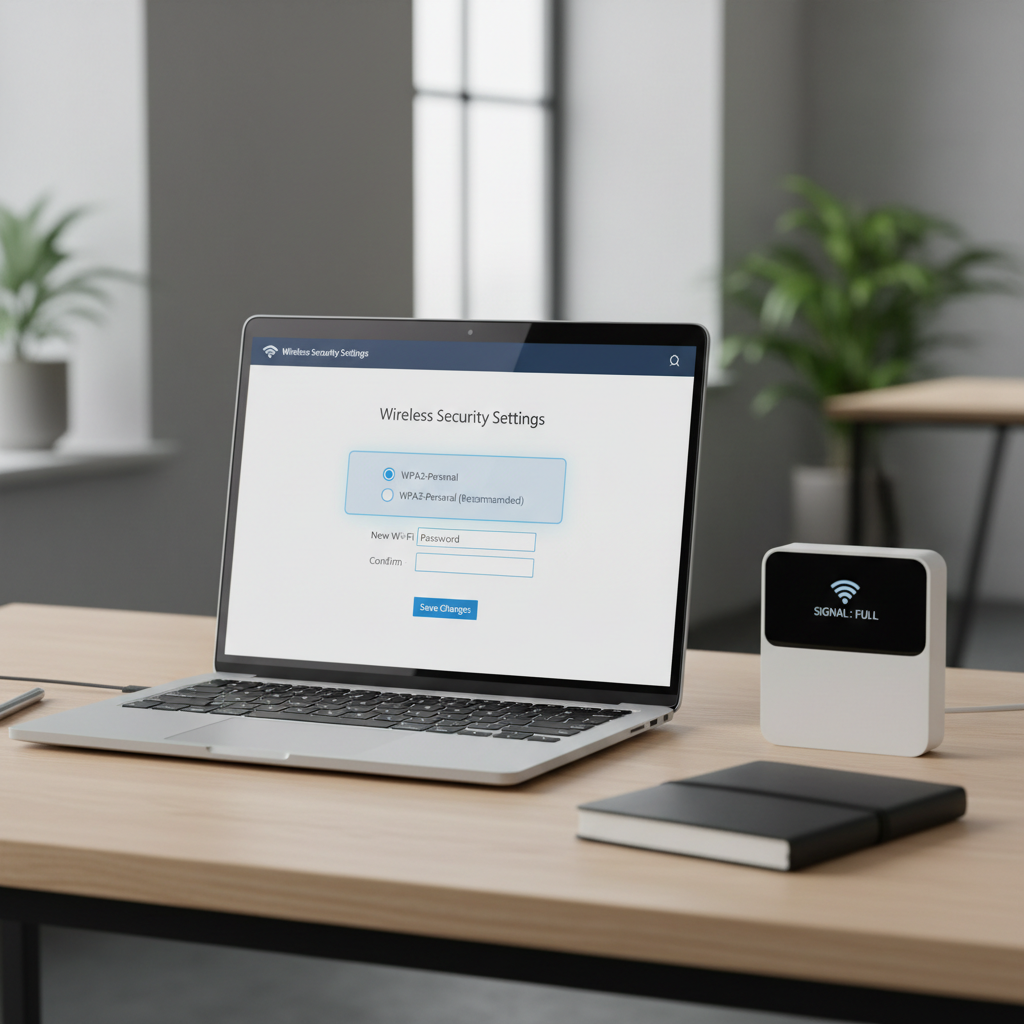
If you handle sensitive work data, a reputable VPN can help on unfamiliar networks, but VPNs can also cause “no internet” symptoms when endpoints block traffic, so treat it as a tool, not a magic shield.
Practical travel tips for a more reliable connection
These aren’t glamorous, but they’re the habits that keep your connection stable across airports, trains, and rentals.
- Carry a short cable and a power bank: hotspots that brown-out behave like “bad coverage.”
- Lock in one “primary” device: connect your laptop first, then add others after service looks stable.
- Prefer 5 GHz when close: it’s often faster, but 2.4 GHz may reach farther through walls.
- Turn off auto-join on public Wi‑Fi: it prevents surprise switching away from your hotspot.
- Know your plan limits: video calls and cloud backups can burn data fast.
Key takeaways:
- Most failures are signal, plan/roaming, or device-level VPN/DNS conflicts.
- Move the hotspot to a better spot before you change ten settings.
- Security setup takes five minutes and pays off all trip.
When to contact support (and what to ask so you get help faster)
Sometimes you do everything right and it still doesn’t work, especially when a SIM is inactive or a region is restricted. If you need to escalate, bring specifics.
- Ask if your plan is active in your current country/region and whether roaming is enabled on the account.
- Provide the hotspot model, current firmware version (if visible), and what network type it shows (LTE/5G).
- Ask for the correct APN settings for your SIM, and whether manual network selection is recommended.
If you’re dealing with repeated dropouts during driving or remote travel, coverage mapping and antenna placement can get technical, in that case a carrier or device manufacturer support team is usually the right next step.
Conclusion: get connected, then make it stable
how to connect portable wifi while traveling is easy when you treat it like a quick system check: confirm the hotspot has service, join the right SSID, then troubleshoot in a smart order if the internet still won’t load.
Your next action can be simple: rename your hotspot SSID today, change the admin password, and save a note with your plan details and support link so you’re not hunting for it in a taxi line.